Key takeaways
- Promptwatch exposes its data via API, which you can pipe into Looker Studio using a third-party connector service (no-code) or a custom Google Apps Script (more flexible)
- The no-code route using a tool like Coupler.io or Two Minute Reports takes about 15-30 minutes and requires no developer skills
- The custom script route gives you full control over data transformation but requires basic JavaScript knowledge
- Once connected, you can build dashboards that combine Promptwatch AI visibility data with Google Analytics, Search Console, and other sources in one view
- Always store your Promptwatch API key securely -- never hard-code it in a shared script
If you're using Promptwatch to track your brand's visibility across ChatGPT, Perplexity, Google AI Overviews, and other AI search engines, you're already sitting on a rich dataset. Visibility scores, citation counts, prompt rankings, competitor comparisons -- it's all there. But Promptwatch's native interface is built for analysis, not for the kind of custom executive dashboards or multi-source reports that marketing teams often need.
That's where Looker Studio comes in. Connecting Promptwatch's API to Looker Studio lets you pull that AI visibility data into a shareable, fully customizable dashboard alongside your other marketing data. This guide walks through exactly how to do it.
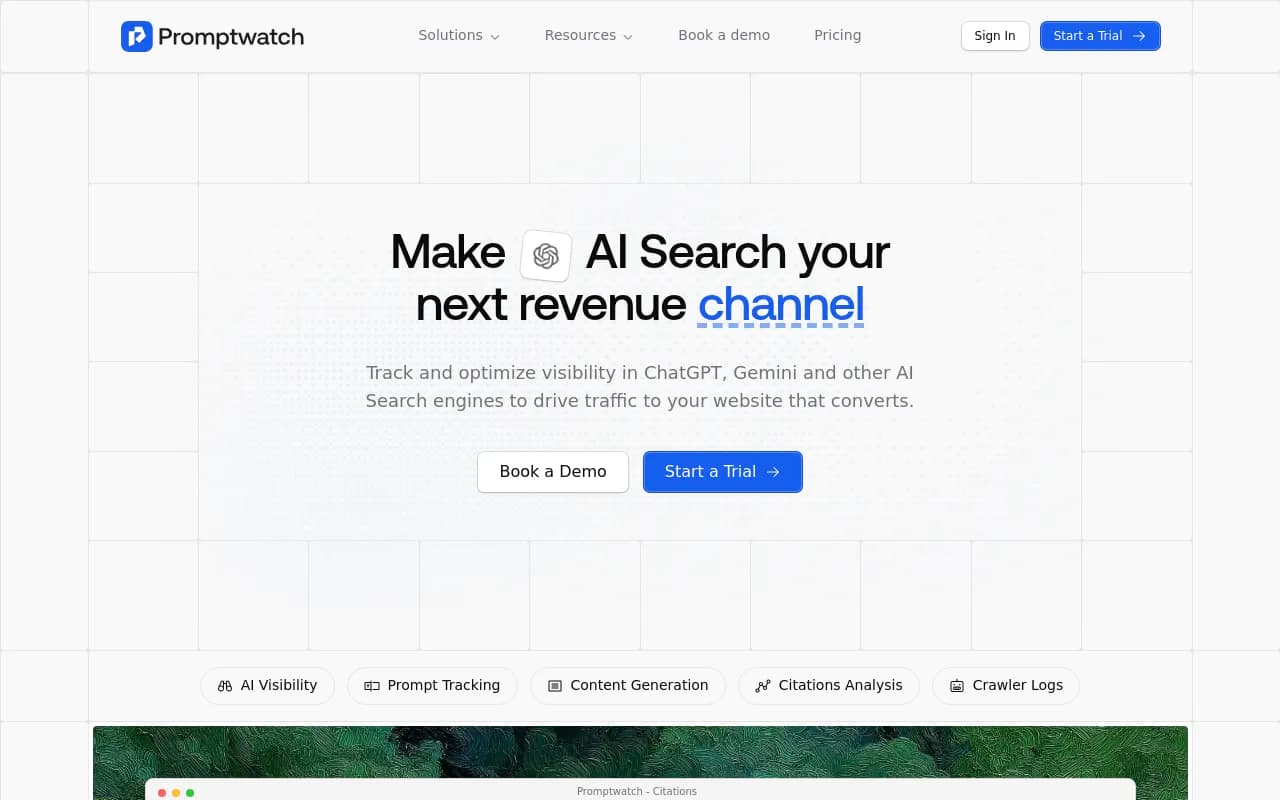
Understanding the two approaches
Before diving in, it's worth being clear about what you're actually doing. Looker Studio doesn't have a native Promptwatch connector (at least not yet), so you have two realistic options:
Option 1: Use a third-party connector service. Tools like Coupler.io or Two Minute Reports act as middleware -- they connect to Promptwatch's API on your behalf, pull the data on a schedule, and make it available as a Looker Studio data source. No code required. This is the right choice for most marketing teams.
Option 2: Write a custom Google Apps Script. You write a small JavaScript function that calls the Promptwatch API, dumps the response into a Google Sheet, and then connect that Sheet to Looker Studio. More setup, but you control everything.
Both approaches work. The choice depends on how much time you want to spend and how custom your data needs are.
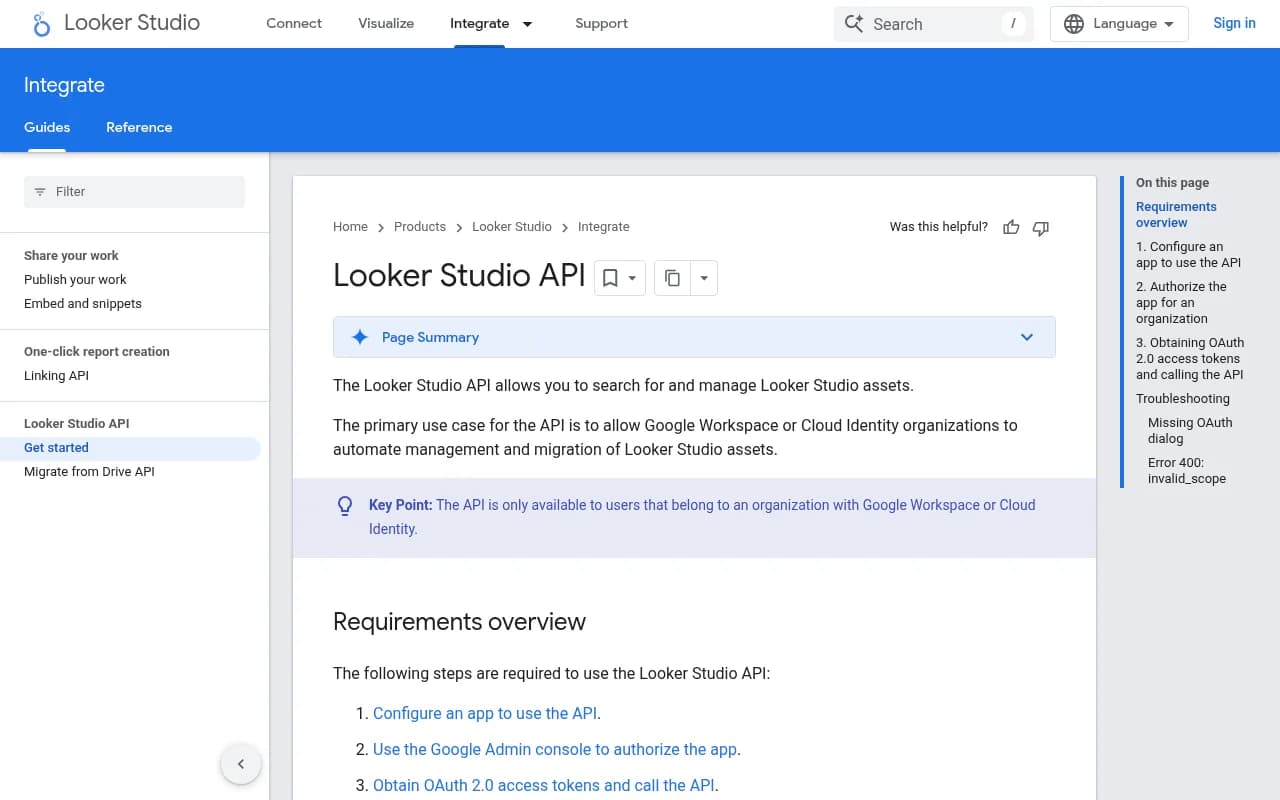
What you'll need before you start
Regardless of which method you choose, gather these things first:
- Your Promptwatch API key (found in Settings > API in your Promptwatch account)
- A Google account with access to Looker Studio
- A clear idea of which Promptwatch data you want to visualize -- visibility scores, citation counts, prompt rankings, competitor comparisons, or all of the above
- About 30-60 minutes of focused time
One note on API keys: treat yours like a password. Don't paste it into a shared Google Sheet cell or a public script. We'll cover secure storage options below.
Method 1: No-code connection via a third-party connector
This is the fastest path. Third-party connector services handle the API authentication, data fetching, and scheduling for you. You just configure what data you want and where it should go.
Step 1: Choose a connector service
The most commonly used options for this kind of setup are Coupler.io and Two Minute Reports. Both support REST API connections, which is what you need for Promptwatch.
For a generic REST API connection (which is what Promptwatch uses), look for a connector labeled "REST API," "JSON API," or "Custom API" in whichever service you choose.
Step 2: Configure the API connection
In your connector service, create a new data source and select the REST API / JSON connector. You'll need to fill in:
- Base URL: The Promptwatch API endpoint you want to pull from (e.g.,
https://api.promptwatch.com/v1/visibility-- check the Promptwatch API docs for the exact endpoints available to your plan) - Authentication method: Bearer token or API key header, depending on how Promptwatch's API is configured
- API key: Paste your Promptwatch API key here
- Request method: GET for most read operations
- Response path: The JSON path to the array of records you want (e.g.,
data.results)
Most connector services let you preview the response before saving, which is useful for confirming you're pulling the right data.
Step 3: Map the fields
Once the connector pulls a sample response, you'll see a list of fields from the Promptwatch API. Map these to the data types Looker Studio expects:
- Dates should be mapped as Date or DateTime
- Visibility scores and citation counts as Numbers
- Brand names, prompt text, and AI model names as Text/Dimension
Rename fields to human-readable labels at this stage -- "visibility_score_7d" is fine in an API response but looks messy in a dashboard.
Step 4: Set a refresh schedule
Configure how often the connector should pull fresh data from Promptwatch. Daily is usually sufficient for visibility tracking. If you're running an active optimization campaign and want to see faster feedback, hourly is an option on most paid plans.
Step 5: Connect to Looker Studio
In Looker Studio:
- Click Create > Data Source
- Search for your connector service (e.g., "Coupler.io") in the connector gallery
- Authorize the connection
- Select the Promptwatch data source you just configured
- Click Connect
Looker Studio will show you the field list. Review it, then click Create Report to start building.
Method 2: Custom Google Apps Script
If you want more control -- custom transformations, combining multiple API endpoints, or avoiding a third-party service -- the Apps Script route is worth the extra effort.
Step 1: Create a Google Sheet to store the data
Open Google Sheets and create a new spreadsheet. Add a header row with the columns you want to populate from Promptwatch. For example:
Date | Prompt | AI Model | Visibility Score | Citations | Competitor Rank
This Sheet will act as the data layer between Promptwatch and Looker Studio.
Step 2: Open the Apps Script editor
In your Google Sheet, go to Extensions > Apps Script. This opens the script editor where you'll write the code to call the Promptwatch API.
Step 3: Write the fetch function
Here's a basic template. Replace the placeholder values with your actual Promptwatch API endpoint and key:
function fetchPromptWatchData() {
  var apiKey = PropertiesService.getScriptProperties().getProperty('PROMPTWATCH_API_KEY');
  var url = 'https://api.promptwatch.com/v1/visibility?days=30';

  var options = {
    method: 'GET',
    headers: {
      'Authorization': 'Bearer ' + apiKey,
      'Content-Type': 'application/json'
    },
    muteHttpExceptions: true
  };

  var response = UrlFetchApp.fetch(url, options);
  var data = JSON.parse(response.getContentText());

  var sheet = SpreadsheetApp.getActiveSpreadsheet().getSheetByName('PromptWatch Data');

  // Clear existing data (keep header row)
  sheet.getRange(2, 1, sheet.getLastRow(), sheet.getLastColumn()).clearContent();

  // Write new data
  var rows = data.results.map(function(item) {
    return [
      item.date,
      item.prompt,
      item.ai_model,
      item.visibility_score,
      item.citation_count,
      item.competitor_rank
    ];
  });

  if (rows.length > 0) {
    sheet.getRange(2, 1, rows.length, rows[0].length).setValues(rows);
  }

  Logger.log('Updated ' + rows.length + ' rows.');
}
A few things to notice here. The API key is stored using PropertiesService rather than being hard-coded in the script. This is important -- it keeps your key out of the script editor where it could be accidentally shared. To set it, go to Project Settings > Script Properties and add PROMPTWATCH_API_KEY as a property with your key as the value.
Also, the exact field names (item.date, item.visibility_score, etc.) will depend on Promptwatch's actual API response structure. Check the API documentation in your Promptwatch account for the correct field names.
Step 4: Test the function
Click the Run button in the Apps Script editor with fetchPromptWatchData selected. Check the execution log for errors. If it runs successfully, go back to your Google Sheet and verify that data has appeared.
Step 5: Set up a time-based trigger
To keep the data fresh automatically:
- In the Apps Script editor, click Triggers (the clock icon on the left)
- Click Add Trigger
- Select
fetchPromptWatchDataas the function - Set the event source to Time-driven
- Choose your frequency (daily is usually fine)
- Save
Step 6: Connect the Google Sheet to Looker Studio
- In Looker Studio, click Create > Data Source
- Select Google Sheets from the connector list
- Choose your spreadsheet and the sheet tab containing the Promptwatch data
- Click Connect
Looker Studio will read the column headers as field names. You can rename and retype them here before building your report.
Building your AI visibility dashboard
Once the data is flowing, here's a practical structure for a Promptwatch dashboard in Looker Studio:
Overview page
- A scorecard showing current overall visibility score
- A time series chart showing visibility score over the past 30/90 days
- A bar chart breaking down visibility by AI model (ChatGPT vs Perplexity vs Gemini, etc.)
Prompt performance page
- A table showing each tracked prompt, its visibility score, and citation count
- Filter controls to segment by AI model or date range
- Conditional formatting to highlight prompts where visibility is below a threshold
Competitor comparison page
- Side-by-side bar charts comparing your visibility score vs competitors for each prompt
- A heatmap-style table if you have competitor data across multiple AI models
Traffic attribution page (if you have GSC or GA4 connected)
This is where Looker Studio really earns its place. Blend your Promptwatch visibility data with Google Search Console or GA4 data to see whether improvements in AI visibility correlate with changes in organic traffic. Use a blended data source with date as the join key.
Comparison of integration methods
| Method | Technical skill needed | Setup time | Ongoing cost | Data freshness | Flexibility |
|---|---|---|---|---|---|
| Third-party connector (e.g., Coupler.io) | None | 15-30 min | $20-50/mo (connector plan) | Hourly to daily | Medium |
| Google Apps Script + Sheets | Basic JavaScript | 1-2 hours | Free | Custom trigger | High |
| Direct Looker Studio connector | None | 5 min | N/A (if available) | Real-time | Low |
For most marketing teams, the third-party connector route is the right call. The Apps Script approach makes sense if you need custom data transformations or want to combine multiple Promptwatch endpoints in one table.
Common issues and how to fix them
Authentication errors (401)
Double-check that your API key is correct and that you're passing it in the right header format. Promptwatch's API documentation will specify whether it expects Authorization: Bearer <key> or a custom header like X-API-Key.
Empty data or missing fields The JSON path you configured in your connector might be wrong. Use a tool like Postman or the browser's network inspector to inspect the raw API response and confirm the exact structure before mapping fields.
Data not refreshing If you're using Apps Script, check that the trigger is still active (they can sometimes be disabled after permission changes). If you're using a connector service, check that the connection hasn't expired due to an API key rotation.
Date fields showing as text in Looker Studio
Looker Studio is picky about date formats. Make sure dates from the Promptwatch API are in YYYY-MM-DD format. In Apps Script, you may need to format them explicitly:
var formattedDate = Utilities.formatDate(new Date(item.date), 'UTC', 'yyyy-MM-dd');
Rate limiting (429 errors)
If you're pulling large amounts of historical data, you might hit Promptwatch's API rate limits. Add a Utilities.sleep(1000) call between paginated requests in your Apps Script to slow things down.
A note on what data to prioritize
It's tempting to pull everything from the Promptwatch API into Looker Studio, but dashboards get unwieldy fast. Start with the metrics that directly connect to business decisions:
- Overall visibility score trend (are you improving?)
- Visibility by AI model (where are you winning, where are you losing?)
- Top 10 prompts by citation count (what's actually driving traffic?)
- Competitor gap (where are they visible and you're not?)
Everything else can be a drill-down or a secondary page. The goal is a dashboard someone can glance at in 30 seconds and know whether AI visibility is moving in the right direction.
If you're not yet using Promptwatch and want to understand what data would be available to pull into these dashboards, the platform tracks visibility across 10 AI models, processes prompt volumes with difficulty scores, and includes page-level citation tracking -- all of which becomes significantly more useful when visualized over time in a tool like Looker Studio.
What to build next
Once your Promptwatch data is live in Looker Studio, a few natural next steps:
- Set up email delivery of the report to stakeholders on a weekly schedule (Looker Studio supports this natively)
- Add a Google Search Console data source and blend it with your visibility data to track whether AI visibility improvements are driving measurable traffic
- Create a separate view filtered to just your competitors' data to run a monthly review of where the competitive landscape is shifting
The integration itself is just plumbing. The value comes from actually using the dashboard to make decisions -- which prompts to target, which AI models to prioritize, and whether the content you're publishing is moving the needle.