Key Takeaways
- Connect Promptwatch data to Looker Studio via API or CSV export to build custom AI search visibility dashboards that track citations, brand mentions, and competitor performance across ChatGPT, Perplexity, Claude, and 9+ other AI models
- Automate reporting workflows by scheduling data refreshes and email delivery, eliminating manual export-import cycles and keeping stakeholders updated on AI visibility metrics
- Build actionable visualizations like citation heatmaps, prompt performance scorecards, and competitor comparison tables that surface content gaps and optimization opportunities
- Leverage Looker Studio's blending features to combine Promptwatch AI search data with Google Analytics traffic data, proving the connection between AI visibility and actual website visits
- Use data transformation and calculated fields to create custom metrics like citation rate, visibility score trends, and prompt difficulty vs. volume matrices that guide content strategy
Why Custom AI Search Reports Matter in 2026
AI search engines like ChatGPT, Perplexity, Claude, and Google AI Overviews now handle billions of queries monthly. For brands, being cited in these AI-generated responses is the new SEO. But tracking AI visibility across 10+ models, thousands of prompts, and dozens of competitors creates a reporting nightmare.
Most AI search monitoring platforms give you dashboards, but those dashboards are built for everyone. They don't answer your specific questions: Which content gaps are costing us the most citations? How does our AI visibility correlate with actual traffic? Which competitors are winning prompts we should own?
That's where custom reports come in. By connecting Promptwatch's rich AI search data to Looker Studio, you can build reports tailored to your exact needs -- whether that's executive-level visibility scorecards, granular prompt performance analysis, or automated weekly reports for your content team.
What Makes Promptwatch Data Ideal for Custom Reporting
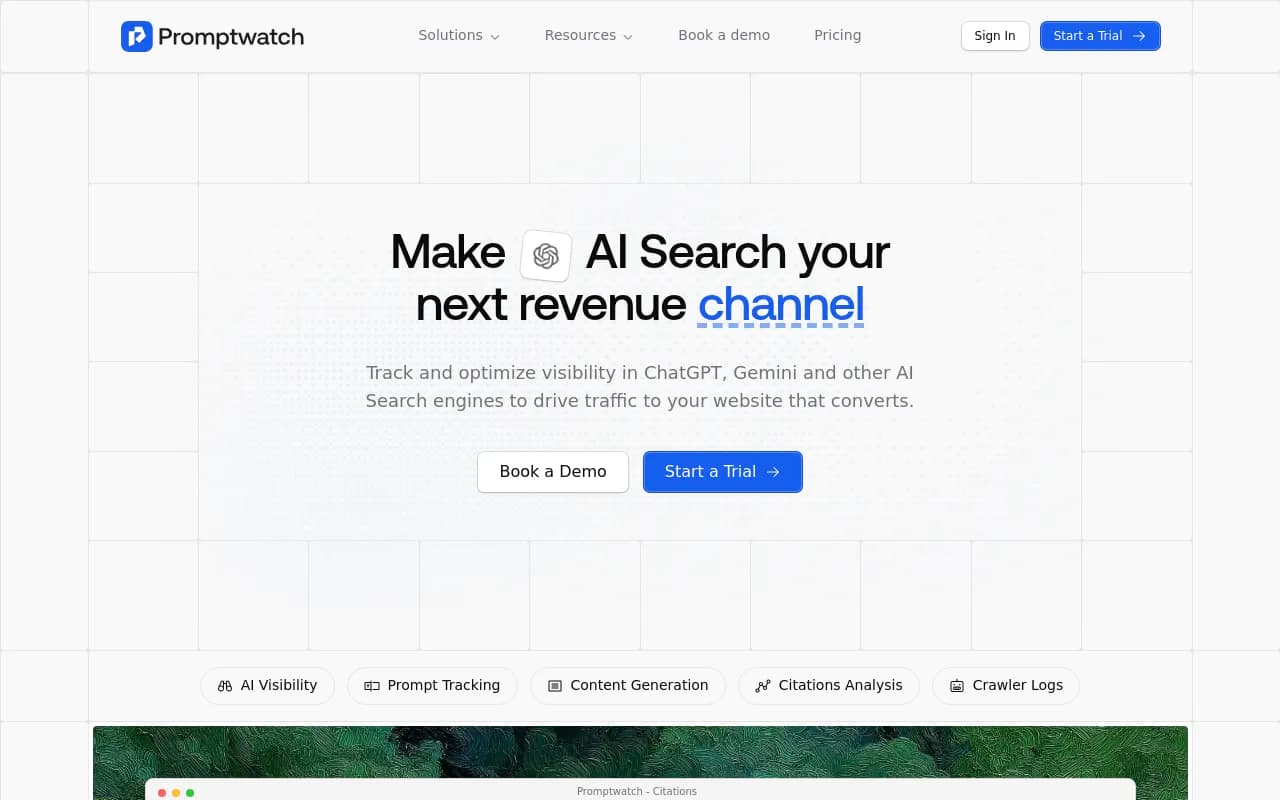
Promptwatch tracks over 1.1 billion citations, clicks, and prompts across ChatGPT, Perplexity, Claude, Gemini, Grok, DeepSeek, Copilot, Mistral, Meta AI, and Google AI Overviews. Unlike monitoring-only platforms, Promptwatch is built around actionable data:
- Citation-level tracking: See exactly which pages AI models cite, how often, and in response to which prompts
- Prompt intelligence: Volume estimates, difficulty scores, and query fan-outs that show how prompts branch into sub-queries
- Competitor analysis: Compare your visibility vs competitors across every prompt and model
- Answer Gap Analysis: Identify which prompts competitors rank for but you don't -- the exact content your site is missing
- AI crawler logs: Real-time data on which pages AI models are reading, how often, and what errors they encounter
- Traffic attribution: Connect AI visibility to actual website visits via code snippet, Google Search Console integration, or server log analysis
This depth of data makes Promptwatch perfect for custom reporting. You're not just tracking mentions -- you're analyzing the full AI search funnel from crawler access to citation to traffic.
Prerequisites: What You'll Need
Before building your first custom report, make sure you have:
- Promptwatch account with API access (available on Professional plan and above)
- Google account for Looker Studio (free)
- Basic understanding of data connectors -- we'll walk through the technical steps, but familiarity with APIs or CSV imports helps
- Clear reporting goals -- know what questions you want your report to answer before you start building
Method 1: Connecting Promptwatch via API (Recommended)
The most powerful approach is connecting Promptwatch's API directly to Looker Studio. This enables automatic data refreshes, real-time updates, and the ability to pull exactly the data you need.
Step 1: Generate Your Promptwatch API Key
Log into Promptwatch and navigate to Settings > API Access. Generate a new API key and save it securely -- you'll need this to authenticate your Looker Studio connection.
Promptwatch's API provides endpoints for:
- Citation data by prompt, model, and time period
- Competitor visibility scores
- Prompt performance metrics (volume, difficulty, citation rate)
- AI crawler log data
- Page-level citation tracking
Step 2: Set Up a Custom Data Connector in Looker Studio
Looker Studio doesn't have a native Promptwatch connector (yet), so you'll use a generic API connector or build a custom one using Google Apps Script.
Option A: Use a Third-Party API Connector
Several Looker Studio community connectors can pull data from REST APIs:
- Supermetrics API Connector
- API Connector by Mixed Analytics
- Custom JSON/CSV connector
Install one of these connectors from the Looker Studio connector gallery. Configure it with:
- API endpoint: Your Promptwatch API URL (e.g.,
https://api.promptwatch.com/v1/citations) - Authentication: Bearer token using your API key
- Parameters: Date range, site ID, prompt filters
Option B: Build a Custom Connector with Google Apps Script
For maximum flexibility, create a custom connector using Google Apps Script. This requires some JavaScript knowledge, but AI coding assistants like Claude or ChatGPT can help generate the code.
Here's a simplified example structure:
function getCitations(request) {
  var apiKey = 'YOUR_PROMPTWATCH_API_KEY';
  var url = 'https://api.promptwatch.com/v1/citations?site_id=' + request.configParams.siteId;

  var options = {
    'method': 'get',
    'headers': {
      'Authorization': 'Bearer ' + apiKey
    }
  };

  var response = UrlFetchApp.fetch(url, options);
  var data = JSON.parse(response.getContentText());

  return formatDataForLookerStudio(data);
}
This approach gives you complete control over data transformation, filtering, and refresh schedules.
Step 3: Configure Your Data Source
Once connected, configure your data source in Looker Studio:
- Define fields: Map Promptwatch data to Looker Studio field types (dimension, metric, date)
- Set data types: Ensure dates are recognized as dates, numbers as numbers, text as text
- Create calculated fields: Build custom metrics like citation rate (citations / prompts tracked) or visibility score trends
- Set refresh schedule: Configure how often Looker Studio pulls fresh data from Promptwatch (hourly, daily, weekly)
Method 2: Using CSV Exports (Simpler, Less Automated)
If API integration feels too technical, you can export data from Promptwatch as CSV files and upload them to Looker Studio manually or via Google Sheets.
Step 1: Export Data from Promptwatch
In Promptwatch, navigate to the report or data view you want to visualize. Use the export function to download:
- Citation data by prompt
- Competitor comparison tables
- Prompt performance metrics
- AI crawler logs
Export as CSV for easy import into Google Sheets.
Step 2: Upload to Google Sheets
Create a new Google Sheet and import your CSV file. Clean up the data if needed:
- Remove unnecessary columns
- Format dates consistently
- Add calculated columns for custom metrics
Step 3: Connect Google Sheets to Looker Studio
In Looker Studio, create a new data source and select Google Sheets as the connector. Choose your uploaded sheet and configure field types.
Limitation: This method requires manual updates. Every time you want fresh data, you'll need to export from Promptwatch, update the Google Sheet, and refresh your Looker Studio report. For weekly or monthly reports, this is manageable. For real-time dashboards, use the API method.
Building Your First AI Search Visibility Report
Now that your data is connected, let's build a practical report that answers real business questions.
Report Structure: The Executive AI Visibility Dashboard
This dashboard gives leadership a high-level view of AI search performance:
- Visibility Score Scorecard: Single number showing overall AI visibility vs. last period
- Citation Trend Line Chart: How citations have changed over time across all AI models
- Model Performance Table: Breakdown of citations by AI engine (ChatGPT, Perplexity, Claude, etc.)
- Competitor Heatmap: Visual comparison of your brand vs. top 5 competitors across key prompts
- Top Cited Pages Table: Which pages are getting cited most often
- Content Gap Summary: Number of high-value prompts where competitors are cited but you're not
Building Each Component
1. Visibility Score Scorecard
Add a scorecard chart. Set the metric to your visibility score field from Promptwatch. Add a comparison to the previous period to show growth or decline.
Customize styling:
- Use green for positive trends, red for negative
- Add a compact number format (e.g., "87.2" instead of "87.23456")
- Include a subtitle explaining what the score represents
2. Citation Trend Line Chart
Add a time series chart. Set:
- Date dimension: Your date field from Promptwatch data
- Metric: Total citations
- Breakdown dimension (optional): AI model, to show separate lines for ChatGPT, Perplexity, etc.
Configure the date range control to let users filter by time period.
3. Model Performance Table
Add a table chart. Set:
- Dimension: AI model name
- Metrics: Citations, prompts tracked, citation rate (citations / prompts)
- Sort: By citations, descending
Add conditional formatting to highlight top-performing models in green.
4. Competitor Heatmap
This is where Looker Studio's pivot table shines. Add a pivot table with:
- Row dimension: Prompt text
- Column dimension: Brand name (your brand + competitors)
- Metric: Citation count
Apply heatmap styling so cells with higher citation counts appear darker. This instantly shows which prompts each brand dominates.
5. Top Cited Pages Table
Add a table chart showing:
- Dimension: Page URL or page title
- Metrics: Total citations, unique prompts cited in, AI models citing
- Sort: By total citations, descending
Add a hyperlink to the URL dimension so users can click through to view the actual page.
6. Content Gap Summary
If you're using Promptwatch's Answer Gap Analysis data, create a scorecard showing the count of prompts where:
- Competitors are cited
- Your brand is not cited
- Prompt volume is above a threshold (e.g., 500+ monthly searches)
This single number tells your content team exactly how many high-value opportunities they're missing.
Advanced Techniques: Data Blending and Calculated Fields
Blending Promptwatch Data with Google Analytics
One of the most powerful reports you can build connects AI visibility to actual traffic. By blending Promptwatch citation data with Google Analytics traffic data, you can prove ROI.
Step 1: Add Google Analytics as a Second Data Source
In your Looker Studio report, add Google Analytics as an additional data source. Pull in:
- Sessions by landing page
- Users by landing page
- Conversions by landing page
Step 2: Create a Blended Data Source
Use Looker Studio's data blending feature to join Promptwatch page-level citation data with Google Analytics landing page data. The join key is the page URL.
This creates a unified dataset showing:
- Citations per page (from Promptwatch)
- Traffic per page (from Google Analytics)
- Conversion rate per page (from Google Analytics)
Step 3: Build a Correlation Chart
Add a scatter plot with:
- X-axis: Citations (Promptwatch)
- Y-axis: Sessions (Google Analytics)
- Bubble size: Conversions (Google Analytics)
This visualization reveals which highly-cited pages are driving traffic and conversions, and which cited pages aren't converting traffic effectively.
Creating Custom Calculated Fields
Looker Studio's calculated fields let you build custom metrics that don't exist in your raw data.
Citation Rate by Prompt Difficulty
Create a calculated field that divides citation count by prompt difficulty score:
CASE
  WHEN Prompt_Difficulty < 30 THEN "Easy"
  WHEN Prompt_Difficulty < 60 THEN "Medium"
  ELSE "Hard"
END
Use this as a dimension to group prompts by difficulty, then compare citation rates across groups. This helps prioritize: are you winning easy prompts but losing hard ones?
Visibility Score Trend
Calculate week-over-week or month-over-month visibility score change:
(Current_Visibility_Score - Previous_Visibility_Score) / Previous_Visibility_Score
Display this as a percentage to show growth or decline trends.
Competitor Gap Metric
If your data includes competitor citation counts, create a field that calculates how far behind you are:
Competitor_Citations - Your_Citations
Filter to show only prompts where this value is positive (you're behind), then sort by gap size to prioritize which competitor advantages to attack first.
Automating Report Delivery
Once your report is built, automate distribution so stakeholders get updates without manual work.
Scheduled Email Delivery
Looker Studio can email reports on a schedule:
- Click the Share button in your report
- Select "Schedule email delivery"
- Configure:
- Recipients: Email addresses of stakeholders
- Frequency: Daily, weekly, monthly
- Format: PDF or link to live report
- Date range: Last 7 days, last 30 days, etc.
For executive reports, weekly PDFs work well. For operational teams, daily links to live dashboards keep everyone aligned.
Embedding Reports in Internal Tools
Looker Studio reports can be embedded in:
- Internal wikis (Notion, Confluence)
- Project management tools (Asana, Monday.com)
- Slack via scheduled screenshots
Use the embed code feature to generate an iframe snippet, then paste it into your internal tool.
Real-World Use Cases
Use Case 1: Content Team Prompt Prioritization Dashboard
Goal: Help content writers identify which prompts to target next.
Report components:
- Table of prompts sorted by opportunity score (high volume, low difficulty, competitor cited but you're not)
- Prompt fan-out visualization showing how one prompt branches into sub-queries
- Citation source analysis showing which Reddit threads, YouTube videos, or domains AI models cite for each prompt
Outcome: Writers spend less time guessing what to write and more time creating content that will actually get cited.
Use Case 2: Executive Monthly AI Visibility Report
Goal: Show leadership how AI search visibility is trending and its impact on traffic.
Report components:
- Visibility score scorecard with month-over-month comparison
- Citation trend line chart showing growth across all AI models
- Blended chart showing correlation between citations and website traffic
- Competitor comparison table highlighting wins and losses
Outcome: Leadership understands AI search as a strategic channel and approves budget for optimization efforts.
Use Case 3: AI Crawler Health Monitoring Dashboard
Goal: Ensure AI models can access and index your content properly.
Report components:
- AI crawler log data showing which models are crawling your site
- Error rate by page (4xx, 5xx errors encountered by AI crawlers)
- Crawl frequency by page section
- Pages with high citation potential but low crawl frequency
Outcome: Technical SEO team identifies and fixes indexing issues before they hurt AI visibility.
Troubleshooting Common Issues
Data Not Refreshing
If your Looker Studio report shows stale data:
- Check your data source refresh schedule
- Verify API credentials haven't expired
- For Google Sheets connections, ensure the sheet is updating
- Try manually refreshing the data source in Looker Studio settings
Blended Data Showing Null Values
When blending Promptwatch and Google Analytics data, mismatched URLs cause null values:
- Ensure URL formats match exactly (trailing slashes, http vs https, www vs non-www)
- Use calculated fields to normalize URLs before blending
- Consider using page title as the join key if URLs are inconsistent
Charts Not Displaying Correctly
If visualizations look wrong:
- Verify field types (dates as dates, numbers as numbers)
- Check for data type mismatches in calculated fields
- Review filter settings that might be excluding data
- Simplify the chart and add complexity incrementally to isolate the issue
Best Practices for AI Search Reporting
Focus on Actionability
Every chart should answer a question or drive a decision. Avoid vanity metrics that look impressive but don't guide action. Instead of "total citations," show "citation rate by prompt difficulty" to help prioritize content creation.
Layer Your Reports
Build three levels:
- Executive dashboard: High-level visibility scores and trends
- Operational dashboard: Prompt-level performance for content teams
- Technical dashboard: Crawler logs and indexing health for SEO teams
Each audience needs different data at different granularity.
Combine AI Search Data with Traditional SEO Metrics
Don't view AI search in isolation. Blend Promptwatch data with:
- Google Search Console data (traditional search visibility)
- Google Analytics data (traffic and conversions)
- CRM data (revenue attribution)
This holistic view shows how AI search fits into your overall marketing funnel.
Document Your Metrics
Add text boxes to your Looker Studio reports explaining:
- How each metric is calculated
- What "good" looks like (benchmarks)
- What action to take when metrics decline
This makes reports self-service and reduces the need for constant explanation.
Next Steps: From Reporting to Optimization
Custom reports are just the beginning. The real value comes from using these insights to improve AI visibility.
Promptwatch's built-in AI writing agent takes the prompts surfaced in your reports and generates content engineered to get cited. This closes the loop:
- Report identifies gaps: Your Looker Studio dashboard shows high-value prompts where competitors are cited but you're not
- Content gets created: Promptwatch's AI agent writes articles grounded in citation data, prompt volumes, and competitor analysis
- Results get tracked: Your Looker Studio report shows visibility scores improving as AI models start citing your new content
This cycle -- identify, create, track -- is what transforms AI search from a monitoring exercise into a growth channel.
Conclusion
Building custom AI search reports in Looker Studio using Promptwatch data gives you visibility and control that generic dashboards can't match. By connecting Promptwatch's rich citation data, prompt intelligence, and competitor analysis to Looker Studio's flexible visualization and automation capabilities, you create reports tailored to your exact needs.
Whether you're tracking executive-level visibility scores, prioritizing content creation, or monitoring AI crawler health, custom reports turn data into decisions. And in 2026, as AI search continues to grow, the brands that can measure and optimize their AI visibility will win.