Key takeaways
- MCP (Model Context Protocol) is an open standard that lets Claude, ChatGPT, and other AI assistants connect directly to external tools and data sources
- Claude handles complex, multi-step tasks over MCP far better than ChatGPT in practice — if you're doing serious work, start there
- You need Claude Pro/Team or ChatGPT Plus/Pro/Team to use MCP connectors; free tiers don't support it
- Setup takes under 5 minutes for most platforms using the web-based connector flow
- For AI visibility platforms specifically, MCP unlocks conversational access to your brand monitoring data — ask questions, pull reports, and trigger actions without leaving your chat interface
What MCP actually is (and why it matters now)
Model Context Protocol is an open standard, originally developed by Anthropic, that gives AI assistants a structured way to connect to external tools. Think of it as a universal adapter: instead of every SaaS product building a custom ChatGPT plugin or Claude integration from scratch, they expose an MCP server, and any MCP-compatible client can connect to it.
The practical upshot: you can talk to your tools through Claude or ChatGPT. Ask your AI visibility platform "which prompts are my competitors ranking for that I'm not?" and get a real answer pulled from live data, not a hallucinated guess.
As WorkOS noted in their 2026 MCP overview, build an MCP server once and every MCP-compatible client — Claude, ChatGPT, Gemini, Cursor, VS Code, a custom agent — can use it. That's a meaningful shift from the fragmented integration landscape of a year ago.
MCP support has expanded quickly. Claude has had it longest and handles it most reliably. ChatGPT added MCP support more recently and works fine for simpler queries, but struggles with complex multi-step helpdesk or analytics tasks. Keep that in mind as you decide where to start.
Before you set anything up
A few things to check before touching any settings:
Subscription requirements. MCP connectors are not available on free tiers. You need:
- Claude: Pro or Team plan
- ChatGPT: Plus, Pro, or Team plan
Admin access. For most platforms, you need to be an admin on the tool you're connecting. Regular user accounts typically can't generate MCP credentials.
Your MCP server URL. Your AI visibility platform should provide this in their settings or integrations section. It usually looks like https://app.yourplatform.com/api/v1/mcp or similar. Check their documentation before starting.
What you want to do. MCP connections have permission scopes. Decide upfront whether you want read-only access (pull reports, ask questions) or read-write access (trigger actions, update settings). Starting with read-only is safer.
Connecting to Claude (web)
This is the recommended starting point. Claude's MCP implementation is the most mature, and it handles complex analytical queries much better than ChatGPT.
Step 1: Open Claude settings
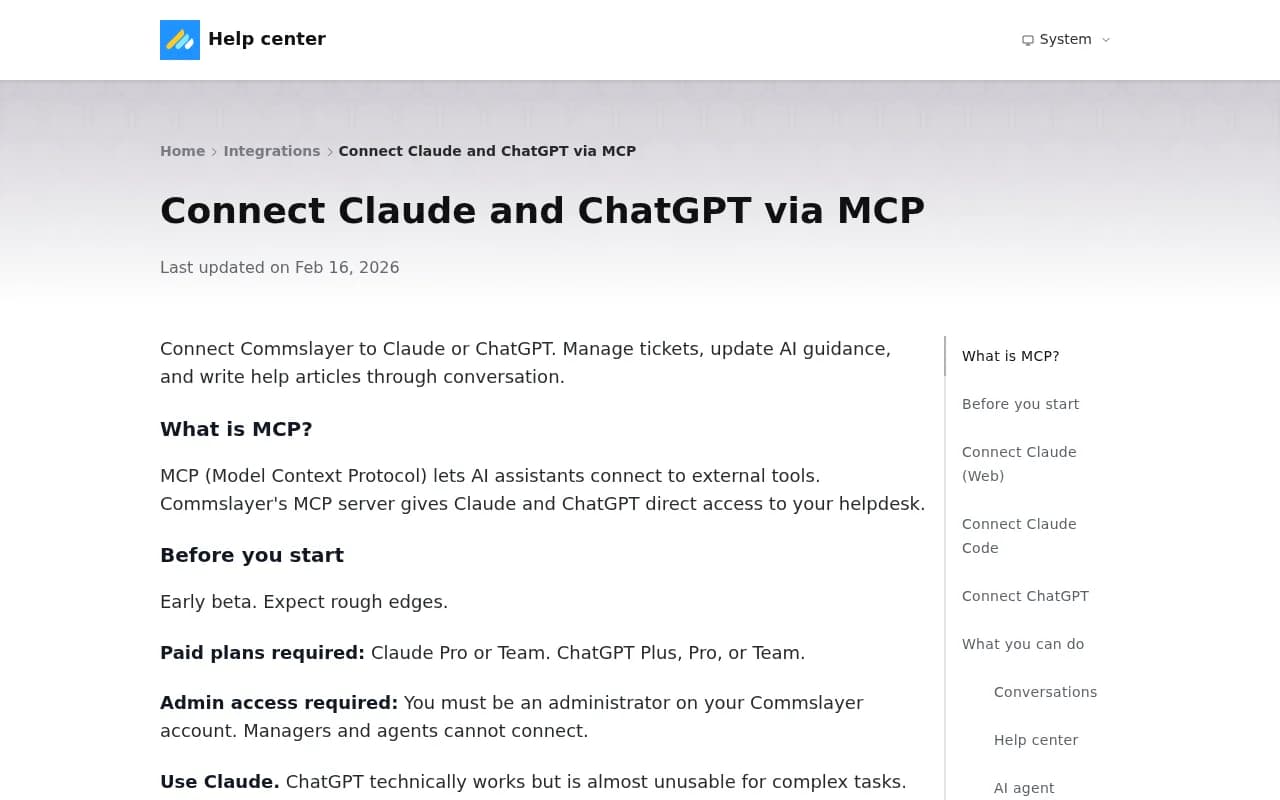
Go to claude.ai and navigate to Settings → Connectors. You'll see a list of any existing connectors and an option to add a new one.
Step 2: Add a custom connector
Click Add custom connector. You'll be prompted for two things:
- Name: Whatever you want to call it (e.g., "AI Visibility Platform" or the platform's actual name)
- URL: The MCP server URL from your platform's settings
Step 3: Authenticate
After clicking Add, Claude will redirect you to your platform's login page. Sign in with your account credentials. This is an OAuth-style flow — you're granting Claude permission to access your account.
Step 4: Configure tool permissions
Once connected, click Configure on the connector. You'll see three permission modes for each tool the server exposes:
- Auto-approve: Claude can use this tool without asking you each time
- Ask each time: Claude will prompt you before calling this tool
- Never allow: Blocks this tool entirely
For read-only data tools (pulling reports, checking visibility scores), auto-approve is fine. For anything that writes data or triggers actions, "ask each time" is the safer default.
Step 5: Test the connection
Start a new conversation and ask something that requires live data from your platform. Something like: "What are my top-performing prompts this week?" or "Which AI models are citing my competitors but not me?" If the connector is working, Claude will call the tool, show you what it's doing, and return real data.
Connecting to Claude Code
If you're working in Claude Code (the developer-focused terminal interface), there are two ways to add an MCP server.
Option 1 — Ask Claude to do it. Paste this into Claude Code:
Configure [Platform Name] MCP with URL: https://your-platform-url.com/api/v1/mcp
Claude Code will handle the configuration and prompt you to authenticate.
Option 2 — Manual setup. Run /mcp to open the MCP configuration panel, add a server with your URL, then complete authentication when prompted.
Verify it's working by asking a simple question that requires data from the connected platform.
Connecting to ChatGPT
ChatGPT's MCP support works, but with caveats. For simple data retrieval — "show me my visibility score" or "list my tracked prompts" — it's fine. For anything that involves multiple tool calls, conditional logic, or complex data manipulation, Claude handles it significantly better.
Step 1: Open ChatGPT settings
In the ChatGPT desktop app or web interface, go to Settings → Connected apps (the exact label varies slightly by interface version). Look for an option to add a custom MCP server or connector.
Step 2: Enter your MCP server details
Provide the server URL from your platform. ChatGPT will attempt to connect and may ask you to authenticate via OAuth, similar to the Claude flow.
Step 3: Set permissions
ChatGPT will show you the tools available from the MCP server. You can enable or disable individual tools. Start with read-only tools enabled and write-access tools disabled until you're comfortable with how it behaves.
Step 4: Test with a simple query
Keep your first test simple. Ask for a specific data point rather than a complex analysis. If that works, gradually try more complex queries.
Connecting your AI visibility platform specifically
The steps above apply to any MCP-compatible tool, but AI visibility platforms have some specific considerations worth calling out.
What you can do once connected:
- Ask natural language questions about your brand's visibility across ChatGPT, Claude, Perplexity, and other AI models
- Pull citation data, prompt rankings, and competitor comparisons without logging into a separate dashboard
- Get alerts and summaries surfaced directly in your chat workflow
- Trigger content gap analyses or report generation through conversation
What to watch for:
Some platforms expose a lot of tools via MCP. If your platform tracks 10 AI models and has separate tools for citations, prompts, competitor data, and crawler logs, you might end up with 20+ tools in your connector. That's fine, but be selective about which ones you auto-approve. Anything that could modify your account settings or trigger paid actions should require manual confirmation.
Promptwatch is one platform where MCP connectivity makes particular sense — you're not just pulling static reports, you're querying live data about which AI models are citing you, which prompts you're missing, and what content gaps exist. Being able to ask those questions conversationally, without switching contexts, is genuinely useful.
Comparison: Claude vs ChatGPT for MCP workflows
| Dimension | Claude | ChatGPT |
|---|---|---|
| MCP maturity | More mature, longer track record | Newer implementation, still improving |
| Complex multi-step tasks | Handles well | Struggles with complex chains |
| Simple data retrieval | Works well | Works well |
| Required plan | Pro or Team | Plus, Pro, or Team |
| Tool permission control | Granular (per-tool) | Available but less granular |
| Best for | Analytics, reporting, complex queries | Quick lookups, simple actions |
| Authentication flow | OAuth (smooth) | OAuth (smooth) |
The honest summary: use Claude for anything analytical or multi-step. ChatGPT is fine for quick data pulls if that's your preferred interface.
Using pre-built MCP connectors vs custom setup
If your AI visibility platform already has an official MCP server, use it. Pre-built connectors are tested, maintained by the platform team, and handle authentication properly. You get immediate value without any configuration work beyond entering the URL.
Custom MCP server setup (building your own) is a different conversation entirely — it involves running a local or hosted server process, managing authentication tokens, and maintaining the integration yourself. That's worth doing if you're a developer who wants to connect a tool that doesn't have an official MCP server yet. But for most marketing and SEO teams, the pre-built path is the right one.
A few AI visibility platforms with MCP support or API access that can be connected this way:
Profound
Otterly.AI


Troubleshooting common issues
"Connection failed" during authentication. Usually means the MCP server URL is wrong, or you're not logged into the platform in your browser. Try opening the platform URL directly first, confirm you're logged in, then retry the connector setup.
Claude says it can't find any tools. The MCP server connected but returned no tools. Check that your account has the right permissions on the platform side — some platforms require admin access before tools are exposed.
Data looks stale or wrong. MCP tools call the platform's API in real time, but some platforms cache data. If you're seeing old numbers, check whether the platform has a "refresh" or "sync" option, or whether there's a known data lag.
ChatGPT keeps asking for confirmation on every tool call. This is the "ask each time" permission mode. Go back to your connector settings and switch the relevant tools to auto-approve if you find it disruptive.
Claude is calling tools you didn't expect. This happens when you have too many tools auto-approved and Claude decides to use them proactively. Review your permission settings and set less-used tools to "ask each time."
What this actually changes for your workflow
The real value of connecting your AI visibility platform via MCP isn't the novelty of talking to your data. It's the reduction in context-switching.
Right now, a typical workflow looks like: notice a question about your AI visibility, open a separate browser tab, log into your platform, navigate to the right report, pull the data, come back to whatever you were doing. That's four or five steps for what should be a quick lookup.
With MCP connected, it's one question in the chat interface you're already using. "How has my visibility on Perplexity changed this month compared to last?" gets answered in seconds, with real data, without leaving your current context.
For teams that are actively working on Generative Engine Optimization (GEO) — publishing content, tracking which AI models are picking it up, iterating based on what's working — that kind of frictionless access to visibility data makes a real difference in how quickly you can act on what you're seeing.
The setup takes less time than reading this guide. Start with Claude, connect your platform, and ask it something you'd normally have to log in separately to answer.