Key takeaways
- Promptwatch's API exposes competitor visibility scores, citation data, and prompt-level rankings that you can pull directly into Google Sheets via Apps Script.
- A well-structured sheet can auto-refresh every hour, giving you a live view of how your brand and competitors rank across ChatGPT, Perplexity, Gemini, and 8 other AI engines.
- The most useful dashboards track three things: share of voice per prompt, which AI models cite each competitor, and how that changes week over week.
- You don't need to be a developer to build this. The Apps Script code in this guide is copy-paste ready.
- Once the data is flowing, you can layer in conditional formatting, sparklines, and email alerts to turn a spreadsheet into something that actually gets read.
If you've spent any time in AI visibility this year, you already know the frustrating part: the data exists, but it's scattered. You log into your platform, check a few prompts, maybe export a CSV, and then... nothing happens with it. The insight dies in a dashboard nobody checks.
This guide fixes that. We're going to build a live competitor AI visibility monitor in Google Sheets that pulls fresh data from Promptwatch's API on a schedule, compares your brand against up to five competitors, and flags changes automatically.
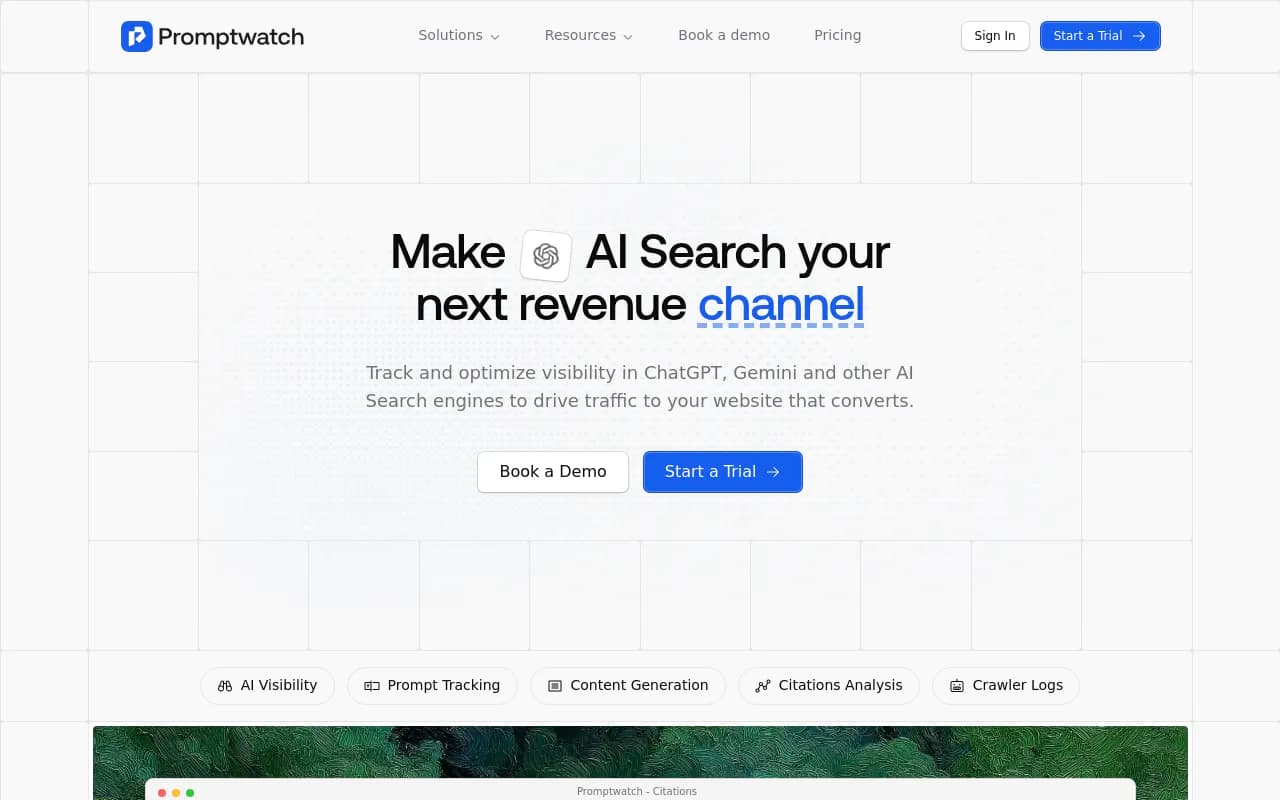
The result looks like a boring spreadsheet. That's the point. Boring spreadsheets get shared in Slack. They get pasted into board decks. They get acted on.
What you'll need before starting
Before writing a single line of Apps Script, get these things sorted:
- A Promptwatch account on the Professional or Business plan (the API is not available on Essential)
- Your Promptwatch API key, found under Settings > API Access
- A Google account with access to Google Sheets
- A list of 5-10 prompts you want to track (e.g. "best project management software for remote teams")
- Your brand domain and 2-5 competitor domains
You don't need to know JavaScript. The code below is annotated and designed to be modified by someone who has never written a script before. If something breaks, the error messages in Apps Script are usually clear enough to diagnose.
Step 1: Set up your Google Sheet structure
Create a new Google Sheet and name it something like "AI Visibility Monitor." Then create four tabs:
Tab 1: Config This is where you store your API key, brand domain, competitor domains, and the list of prompts. Keeping config separate from data means you can update settings without touching the scripts.
Set it up like this:
| Row | Column A | Column B |
|---|---|---|
| 1 | API Key | your_api_key_here |
| 2 | Brand Domain | yourbrand.com |
| 3 | Competitor 1 | competitor1.com |
| 4 | Competitor 2 | competitor2.com |
| 5 | Competitor 3 | competitor3.com |
| 6 | Refresh Interval (min) | 60 |
Below that, add a section for prompts:
| Row | Column A | Column B |
|---|---|---|
| 10 | Prompts | |
| 11 | best CRM for small business | |
| 12 | top project management tools 2026 | |
| 13 | what is the best email marketing platform |
Tab 2: Raw Data This tab receives the API response. You'll never edit it manually. Headers should be:
Timestamp | Prompt | AI Model | Brand | Rank | Cited | Share of Voice | Response Snippet
Tab 3: Dashboard Pivot tables, charts, and summary metrics live here. We'll build this in Step 4.
Tab 4: Change Log Every time a competitor's rank changes by more than one position, it gets logged here with a timestamp. This is the tab you'll want to check on Monday mornings.
Step 2: Write the Apps Script to call Promptwatch's API
Open Extensions > Apps Script in your Google Sheet. Delete the default myFunction() stub and paste the following:
const SHEET_NAME_CONFIG = "Config";
const SHEET_NAME_RAW = "Raw Data";
const SHEET_NAME_LOG = "Change Log";

function getConfig() {
  const sheet = SpreadsheetApp.getActiveSpreadsheet().getSheetByName(SHEET_NAME_CONFIG);
  return {
    apiKey: sheet.getRange("B1").getValue(),
    brandDomain: sheet.getRange("B2").getValue(),
    competitors: [
      sheet.getRange("B3").getValue(),
      sheet.getRange("B4").getValue(),
      sheet.getRange("B5").getValue()
    ].filter(Boolean),
    prompts: sheet.getRange("B11:B30").getValues().flat().filter(Boolean)
  };
}

function fetchVisibilityData() {
  const config = getConfig();
  const rawSheet = SpreadsheetApp.getActiveSpreadsheet().getSheetByName(SHEET_NAME_RAW);

  const allDomains = [config.brandDomain, ...config.competitors];
  const timestamp = new Date().toISOString();

  const newRows = [];

  config.prompts.forEach(prompt => {
    allDomains.forEach(domain => {
      const url = `https://api.promptwatch.com/v1/visibility?domain=${encodeURIComponent(domain)}&prompt=${encodeURIComponent(prompt)}`;

      const options = {
        method: "GET",
        headers: {
          "Authorization": `Bearer ${config.apiKey}`,
          "Content-Type": "application/json"
        },
        muteHttpExceptions: true
      };

      try {
        const response = UrlFetchApp.fetch(url, options);
        const data = JSON.parse(response.getContentText());

        if (data && data.results) {
          data.results.forEach(result => {
            newRows.push([
              timestamp,
              prompt,
              result.model,          // e.g. "chatgpt", "perplexity", "gemini"
              domain,
              result.rank || "N/A",
              result.cited ? "Yes" : "No",
              result.share_of_voice || 0,
              (result.snippet || "").substring(0, 200)
            ]);
          });
        }
      } catch (e) {
        Logger.log(`Error fetching data for ${domain} / ${prompt}: ${e.message}`);
      }
    });
  });

  if (newRows.length > 0) {
    rawSheet.getRange(
      rawSheet.getLastRow() + 1, 1, newRows.length, newRows[0].length
    ).setValues(newRows);
  }

  checkForChanges(newRows, config.brandDomain);
  Logger.log(`Fetched ${newRows.length} rows at ${timestamp}`);
}

function checkForChanges(newRows, brandDomain) {
  const logSheet = SpreadsheetApp.getActiveSpreadsheet().getSheetByName(SHEET_NAME_LOG);
  const rawSheet = SpreadsheetApp.getActiveSpreadsheet().getSheetByName(SHEET_NAME_RAW);

  // Get previous data for comparison (last 500 rows)
  const lastRow = rawSheet.getLastRow();
  if (lastRow < 2) return;

  const previousData = rawSheet.getRange(
    Math.max(2, lastRow - 500), 1, Math.min(500, lastRow - 1), 8
  ).getValues();

  newRows.forEach(newRow => {
    const [ts, prompt, model, domain, rank] = newRow;
    if (rank === "N/A") return;

    // Find most recent previous entry for same prompt/model/domain
    const prev = previousData.reverse().find(row =>
      row[1] === prompt && row[2] === model && row[3] === domain
    );

    if (prev && prev[4] !== "N/A" && Math.abs(prev[4] - rank) >= 1) {
      logSheet.appendRow([
        new Date().toISOString(),
        domain,
        prompt,
        model,
        prev[4],        // old rank
        rank,           // new rank
        rank < prev[4] ? "IMPROVED" : "DROPPED"
      ]);
    }
  });
}
A few things to note about this code:
The getConfig() function reads everything from your Config tab, so you never hardcode credentials in the script. The fetchVisibilityData() function loops through every combination of prompt and domain, fires an API call for each, and appends results to the Raw Data tab. The checkForChanges() function compares new ranks against the most recent historical entry and writes anything that moved to the Change Log.
The API endpoint structure above follows Promptwatch's REST API pattern. Check the Promptwatch API docs for the exact endpoint names and response schema for your account tier, since field names can vary slightly between API versions.
Step 3: Set up automated triggers
A dashboard that only updates when you remember to run it manually isn't a dashboard. It's a chore.
Go to the Apps Script editor, click the clock icon (Triggers) in the left sidebar, and create a new trigger:
- Function to run:
fetchVisibilityData - Event source: Time-driven
- Type: Hour timer
- Every: 1 hour (or 2 hours if you want to stay within API rate limits)
You can also add a second trigger to send yourself an email summary every Monday morning. Add this function to your script:
function sendWeeklyDigest() {
  const logSheet = SpreadsheetApp.getActiveSpreadsheet().getSheetByName(SHEET_NAME_LOG);
  const lastRow = logSheet.getLastRow();

  if (lastRow < 2) return;

  // Get changes from the last 7 days
  const allChanges = logSheet.getRange(2, 1, lastRow - 1, 7).getValues();
  const oneWeekAgo = new Date();
  oneWeekAgo.setDate(oneWeekAgo.getDate() - 7);

  const recentChanges = allChanges.filter(row => new Date(row[0]) > oneWeekAgo);

  if (recentChanges.length === 0) return;

  let emailBody = "AI Visibility Changes This Week:\n\n";
  recentChanges.forEach(row => {
    emailBody += `${row[6]}: ${row[1]} moved from rank ${row[4]} to ${row[5]} for "${row[2]}" on ${row[3]}\n`;
  });

  MailApp.sendEmail({
    to: Session.getActiveUser().getEmail(),
    subject: `AI Visibility Digest - ${new Date().toDateString()}`,
    body: emailBody
  });
}
Set this on a weekly trigger (every Monday at 8am). Now your team gets a plain-text email every Monday with exactly what moved and in which direction.
Step 4: Build the dashboard tab
Raw data is useless without a readable summary. Switch to your Dashboard tab and build the following:
Section 1: Share of voice by AI model
Create a pivot table from the Raw Data tab:
- Rows: Domain (brand + competitors)
- Columns: AI Model (chatgpt, perplexity, gemini, etc.)
- Values: Average of Share of Voice
This gives you a matrix showing which competitor dominates which AI engine. You'll often find that one brand owns Perplexity while another owns ChatGPT. That's a gap you can exploit.
Section 2: Citation rate by prompt
Another pivot table:
- Rows: Prompt
- Columns: Domain
- Values: Count of "Yes" in the Cited column, divided by total rows for that combination
This shows which prompts your competitors are consistently cited for but you're not. Those are your content gaps.
Section 3: Trend sparklines
For each prompt/domain combination, you can add a sparkline showing rank over time. In a cell next to your summary table, use:
=SPARKLINE(FILTER('Raw Data'!E:E, 'Raw Data'!B:B="your prompt here", 'Raw Data'!D:D="competitor.com", 'Raw Data'!C:C="chatgpt"), {"charttype","line";"color","red"})
This creates a tiny inline chart showing rank movement over the past N data points. At a glance, you can see if a competitor has been climbing steadily or dropped off a cliff.
Section 4: Conditional formatting
Select your share of voice matrix and apply a color scale: red for low values, green for high. Your brand's column should be immediately obvious. If it's mostly red, you have a problem. If it's mostly green, you're winning.
Step 5: Add competitor heatmap logic
One of the more useful things you can build on top of this data is a simple heatmap showing which AI models are most likely to cite each competitor. This is particularly useful for agencies managing multiple clients.
Add a new section to your Dashboard tab with this formula structure:
=COUNTIFS('Raw Data'!D:D, "competitor.com", 'Raw Data'!C:C, "chatgpt", 'Raw Data'!F:F, "Yes") / COUNTIFS('Raw Data'!D:D, "competitor.com", 'Raw Data'!C:C, "chatgpt")
Repeat for each AI model. Format as percentages and apply conditional formatting. What you get is a table like this:
| Domain | ChatGPT | Perplexity | Gemini | Claude | Grok |
|---|---|---|---|---|---|
| yourbrand.com | 34% | 28% | 41% | 19% | 22% |
| competitor1.com | 67% | 71% | 45% | 55% | 38% |
| competitor2.com | 22% | 44% | 38% | 61% | 29% |
The gaps in your row are where you need content. The models where competitors dominate are the ones to prioritize.
Step 6: Interpret the data and act on it
The dashboard is only as useful as what you do with it. Here's how to read the signals:
A competitor's citation rate jumps on a specific prompt. They probably published new content targeting that topic. Go look at what they wrote. Then use Promptwatch's Answer Gap Analysis to see exactly what content you're missing.
Your brand disappears from one AI model but stays visible on others. This usually means a crawling issue. Check Promptwatch's AI Crawler Logs to see if that model's bot has visited your site recently and whether it encountered errors.
Share of voice is declining across all models for a specific prompt. A third party (Reddit thread, YouTube video, news article) has entered the picture and is getting cited instead of brand pages. Promptwatch's citation analysis shows you exactly which sources AI models are pulling from, so you can identify the specific URL eating your visibility.
The Change Log shows consistent weekly drops. This is the one that should trigger a real response. Pull the affected prompts, run them through Promptwatch's content generation tool, and publish something better.
Comparison: building this yourself vs. using Promptwatch's native dashboard
You might be wondering why bother with Google Sheets at all when Promptwatch already has a dashboard.
| Approach | Best for | Limitations |
|---|---|---|
| Promptwatch native dashboard | Day-to-day monitoring, deep dives, content generation | Can't easily share with stakeholders who don't have accounts |
| Google Sheets + API | Weekly reporting, exec summaries, multi-client agency views | Requires setup time; limited to what the API exposes |
| Both together | Teams that need both operational depth and shareable reporting | Slight data duplication |
The honest answer is that the native Promptwatch dashboard is better for doing the actual work: finding gaps, generating content, tracking results. The Google Sheets setup is better for communicating that work to people who aren't in the tool every day. Use both.
Troubleshooting common issues
"Exception: Request failed" in the Apps Script logs. Usually an API key issue. Double-check that you copied the full key from Promptwatch's settings page and that there are no trailing spaces in cell B1 of your Config tab.
The Raw Data tab is growing too fast. Add a cleanup function that deletes rows older than 90 days. Run it weekly via a trigger.
Pivot tables aren't refreshing automatically. Google Sheets pivot tables don't auto-refresh when underlying data changes. Add a button on your Dashboard tab that runs a script to force a refresh, or just hit Ctrl+Shift+F5.
Rate limit errors from the API. Reduce your trigger frequency or add a Utilities.sleep(1000) call inside your prompt loop to add a 1-second pause between requests.
What this setup can't do (and what fills the gap)
This Google Sheets monitor is good at showing you numbers. It's not good at telling you what to do about them.
For that, you need the full Promptwatch platform: the Answer Gap Analysis that shows exactly which prompts competitors rank for but you don't, the AI writing agent that generates content engineered to get cited, and the page-level tracking that closes the loop between content published and visibility gained.
The spreadsheet is a reporting layer. Promptwatch is the optimization layer. They work best together.
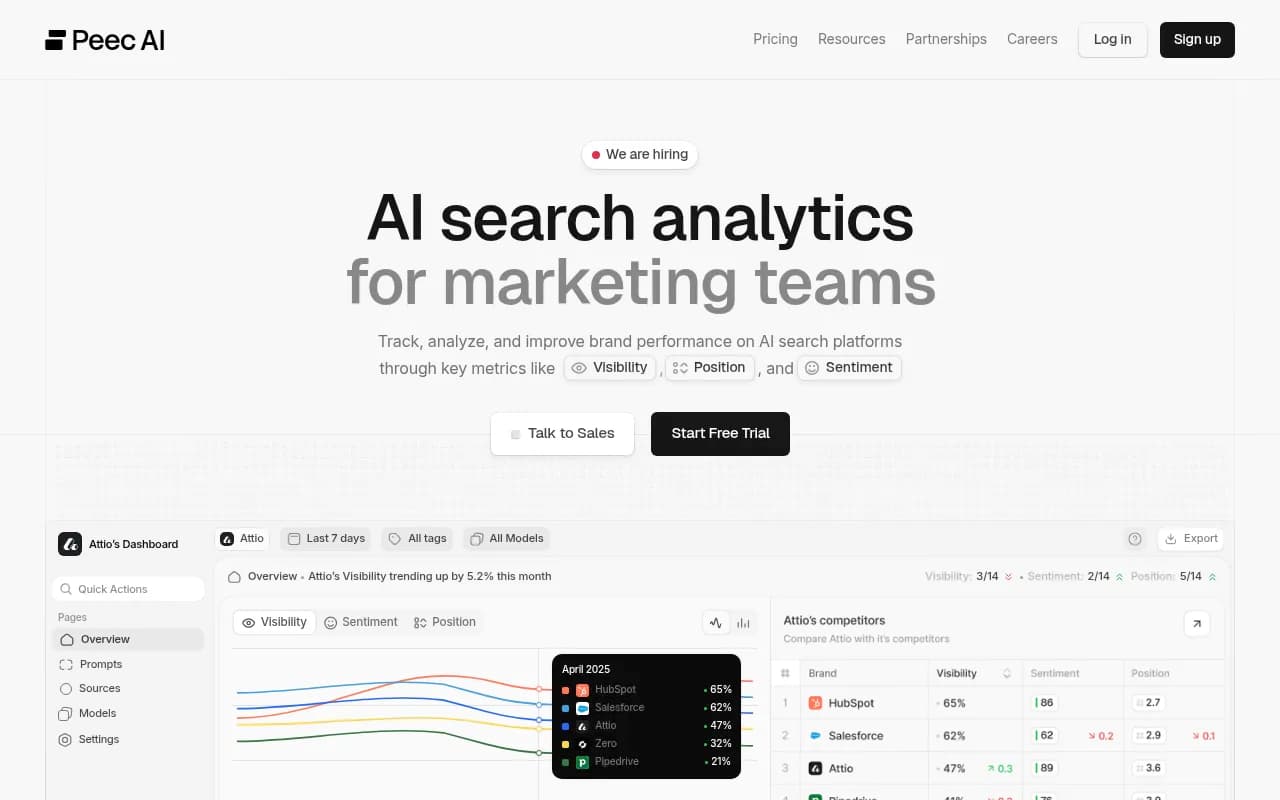
If you want to explore other tools in the AI visibility space while you're building this out, a few worth knowing:
Otterly.AI

Profound
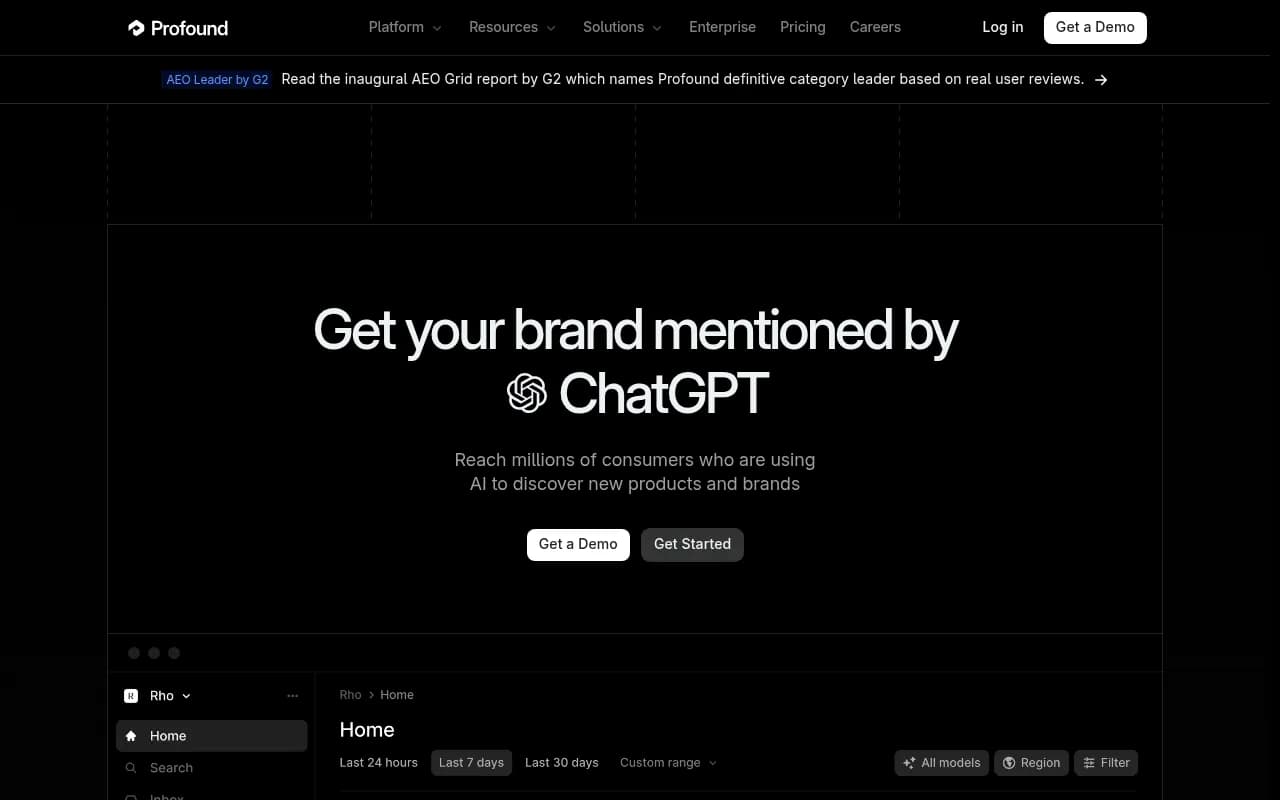
These are solid monitoring tools, though none of them offer the content generation and gap analysis that makes Promptwatch useful beyond just tracking numbers.
Final setup checklist
Before you consider this done, run through this list:
- Config tab has your API key, brand domain, competitor domains, and at least 5 prompts
- Apps Script runs without errors (check the Execution Log)
- Hourly trigger is active and has fired at least once successfully
- Raw Data tab has at least one row of real data
- Dashboard pivot tables are connected to Raw Data and showing values
- Weekly digest trigger is set for Monday morning
- Change Log headers are in place: Timestamp, Domain, Prompt, Model, Old Rank, New Rank, Direction
- You've shared the sheet with at least one other person on your team
Once that's all checked off, you have something genuinely useful: a live window into how AI engines are treating your brand and your competitors, updated automatically, shareable with anyone, and connected to a platform that can actually help you fix what's broken.
That's the whole point. Not just watching the numbers move, but knowing what to do when they do.