Key takeaways
- MCP (Model Context Protocol) lets Claude call live external tools mid-conversation, so it can pull Search Console data, SERP data or backlinks instead of guessing.
- There are two ways to connect: a local server defined in
claude_desktop_config.json, or a remote custom connector added through Claude's settings. - The Google Search Console server is the best first project. It is free, open source, and takes about 15 minutes.
- Most failures come from bad JSON, a missing Node.js or uv install, or not fully quitting Claude Desktop after an edit.
- Credentials in the config file sit in plain text. Treat the file like a password vault.
What an MCP server does for SEO work
MCP is Anthropic's open protocol for connecting an AI client to outside tools and data. The client is the host (here, Claude Desktop). The server exposes capabilities. According to the official MCP docs, a server can offer three things: resources (file-like data), tools (functions the model can call, with your approval), and prompts (reusable templates).
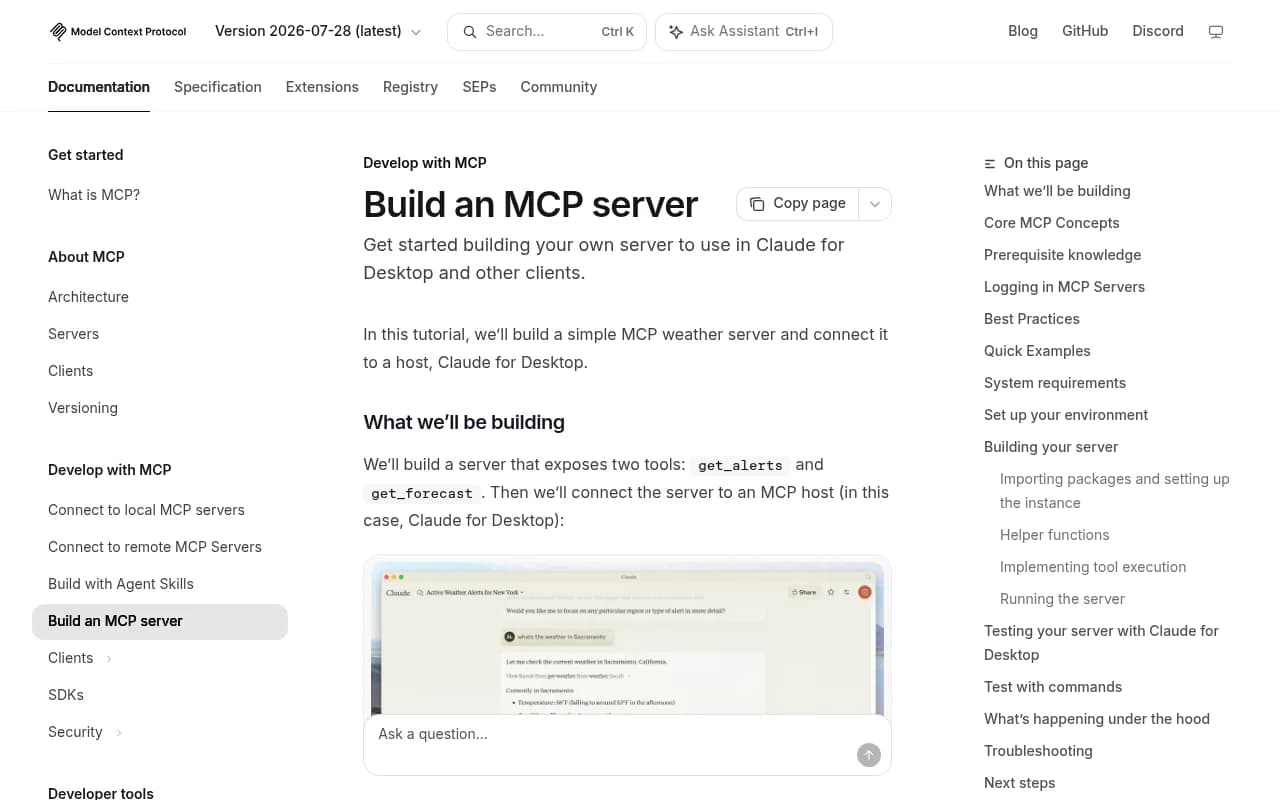
For SEO, tools are what matter. Instead of exporting a CSV from Google Search Console, pasting it into a chat and hoping the column headers survive, you ask "which queries lost clicks last month?" and Claude calls the API itself. The data is live. The answer comes back in the same window.
I'll be blunt about one thing. This does not make Claude an SEO expert. It makes Claude an analyst with access to your data. The quality of the answers still depends on your questions and on whether you check the numbers.
Before you start
You need a few things in place. Which ones depend on the server you pick.
| Requirement | Needed for | Notes |
|---|---|---|
| Claude Desktop (latest version) | Everything | Local servers only work in the desktop app, not the website |
| Node.js | Servers launched with npx (DataForSEO, many others) | Install the LTS release |
| uv (Python tool runner) | Servers launched with uvx (the GSC server) | Installer puts it in ~/.local/bin |
| A Google Cloud project | Search Console server | Free to create |
| An API subscription | Ahrefs, Semrush, DataForSEO | Check current pricing on each vendor's site |
| A text editor | Config edits | Anything that doesn't add smart quotes |
One more point: Claude Desktop is the client that matters for local servers. As the mcp-gsc README notes in its troubleshooting section, the MCP server runs locally on your machine, so it will not show up in the Claude website.
Two ways to connect a server
Claude Desktop supports two setups, and mixing them up is the most common beginner mistake.
| Method | Runs where | Setup | Best for |
|---|---|---|---|
| Local stdio server | Your computer | Edit claude_desktop_config.json | Open-source servers, private credentials, Search Console |
| Desktop extension (.mcpb) | Your computer | Install the package | The easiest local install when one exists |
| Remote custom connector | Vendor's cloud | Settings, Connectors, add URL | Hosted servers like Ahrefs or Semrush |
A remote connector is reached from Anthropic's cloud, not from your device, so the server must be publicly reachable (per Anthropic's custom connectors help article). A server on localhost will not work as a remote connector.
Step 1: Find and open the config file
The fastest route is inside the app. Open Claude Desktop, go to Settings, click the Developer tab, then click Edit Config. This opens the folder holding the file, and creates it if it does not exist yet.
If you prefer to go directly:
- macOS:
~/Library/Application Support/Claude/claude_desktop_config.json - Windows:
%APPDATA%\Claude\claude_desktop_config.json
The file holds one JSON object. Each server goes under the mcpServers key, with a name you choose, a command, an args array, and optionally an env object for credentials.
{
  "mcpServers": {
    "my-server-name": {
      "command": "npx",
      "args": ["-y", "some-package"],
      "env": {
        "API_KEY": "your-key-here"
      }
    }
  }
}
Two rules I wish someone had told me earlier. JSON does not allow trailing commas, and on Windows every backslash in a path must be doubled (C:\\Users\\you\\Desktop).
Step 2: Set up Google Search Console (the best first server)
Search Console is free, the data is yours, and every SEO question eventually touches it. The open-source mcp-gsc project by Amin Foroutan is a popular choice, and a separate guide by Suganthan Mohanadasan documents a 29-tool server covering analysis, image SEO, generative AI, monitoring, reporting and indexing.
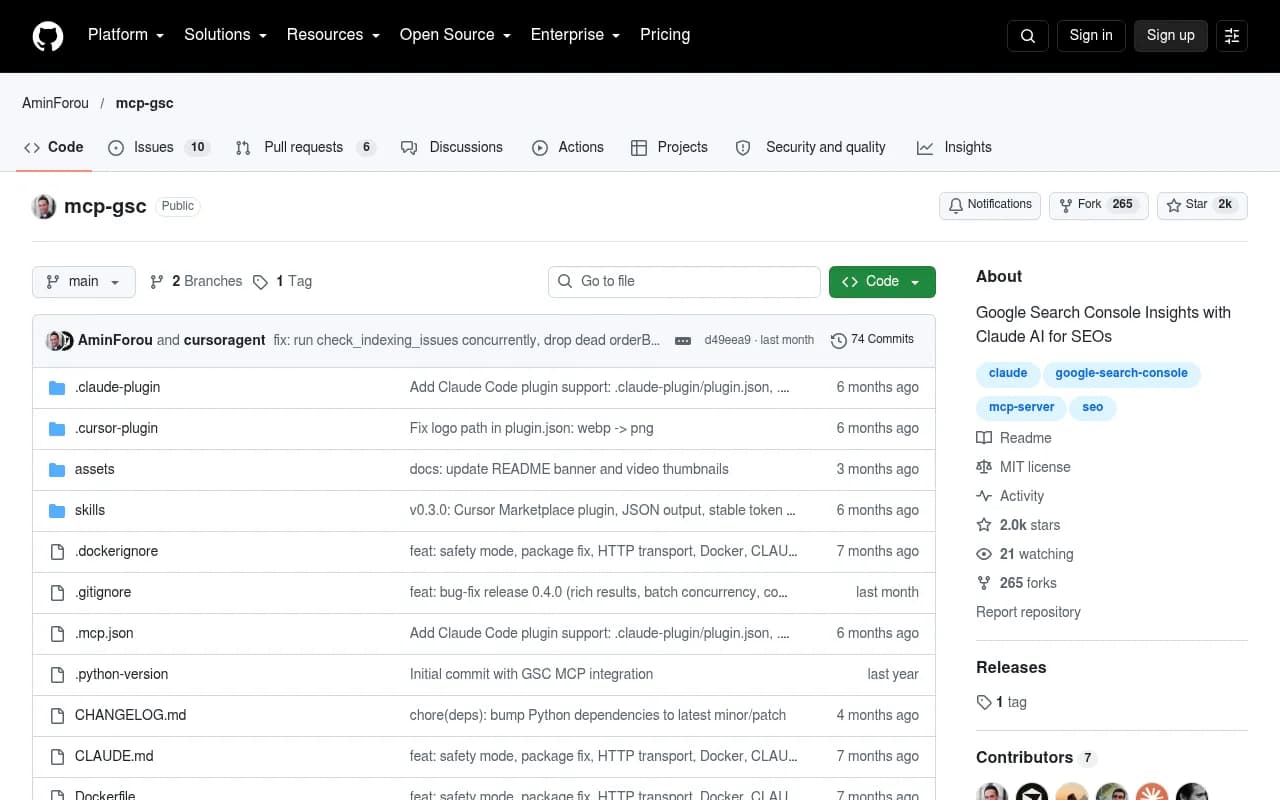
Both maintainers describe two authentication routes. OAuth is the recommended one. A service account gives more control but takes more steps. Pick one.
Create Google API credentials
- Go to console.cloud.google.com and create a new project. Name it something obvious like GSC MCP.
- Enable the Google Search Console API. Optionally enable the Web Search Indexing API too if you want indexing tools.
- For OAuth, configure the consent screen and create an OAuth client ID. For a service account, go to IAM & Admin, create a service account named gsc-mcp, skip the optional permission and user steps, then open the Keys tab, choose Add Key, Create new key, and select JSON.
That JSON file is a credential. Keep it somewhere safe, never commit it to GitHub, and do not paste it into a forum thread asking why it isn't working.
Give the service account access (service account route only)
Open the downloaded JSON and copy the client_email value. In Search Console, select your property, go to Settings, then Users and permissions, click Add user, paste the email and set the permission to Full. Skip this and every call returns an empty list or a permission error, which is the single most confusing failure in this whole setup.
Install with uvx
The mcp-gsc README marks uvx as the recommended installation. The installer puts uv in ~/.local/bin, but a Terminal window that was already open does not know about that folder yet. So you activate it for the current session and also add it to your shell profile so future windows find it. The README walks through all three commands and explains why. Follow them exactly rather than improvising.
Then add the server to your config. The README and the Suganthan guide each give the exact current block for OAuth and for service accounts, so copy from the source instead of from a blog summary (including this one). One detail from Suganthan's guide: if you set this up before April 2026 and your config says gsc-mcp-server, that pointed at a different maintainer's package, so update it.
Restart properly
Save the file, then fully quit Claude Desktop and reopen it. Closing the window is not enough on most systems. If the server does not appear, restart first, then check the JSON.
Step 3: Validate your JSON before you blame the server
A surprising share of problems are plain syntax errors. Validate from a terminal:
# macOS / Linux
python3 -m json.tool "$HOME/Library/Application Support/Claude/claude_desktop_config.json"
# Windows PowerShell
Get-Content "$env:APPDATA\Claude\claude_desktop_config.json" -Raw | ConvertFrom-Json
If either command prints an error, it will point at the line. Fix that, save, restart.
Step 4: Add a keyword and SERP data server
Search Console only knows about your own site. For keyword volumes and SERP data, DataForSEO publishes an official MCP server. Its help center guide runs it through npx -y dataforseo-mcp-server and takes two environment variables, DATAFORSEO_USERNAME and DATAFORSEO_PASSWORD.
{
  "mcpServers": {
    "dataforseo": {
      "command": "npx",
      "args": ["-y", "dataforseo-mcp-server"],
      "env": {
        "DATAFORSEO_USERNAME": "your-api-login",
        "DATAFORSEO_PASSWORD": "your-api-password"
      }
    }
  }
}
Because npx needs Node.js, install that first. Add this block alongside your Search Console entry inside the same mcpServers object, separated by a comma. Don't create a second mcpServers key. DataForSEO is pay-as-you-go API access, so confirm current pricing on their site before running big queries.
Step 5: Add vendor connectors (Ahrefs and Semrush)
The big suites now ship their own servers, which is nicer than maintaining community code.
- Ahrefs has a remote MCP server at
https://api.ahrefs.com/mcp/mcpand requires an active subscription with API access. The repo is at github.com/ahrefs/ahrefs-mcp-server. One third-party source lists the Claude Code command asclaude mcp add ahrefs --transport http https://api.ahrefs.com/mcp/mcp. Verify against Ahrefs' own docs before relying on it. - Semrush has an official connector in Claude's directory, added with OAuth under Settings, Connectors. A community server (mrkooblu/semrush-mcp) reportedly exposes 77 tools, but I'd start with the official one.

For remote servers, skip the config file. In Claude, go to Customize, Connectors, click Add, then Add custom connector. Enter a name and the server URL, choose an authentication mode (sign in now, sign in when needed, or no sign in), and pick the OAuth client. Claude's published identity is the recommended option. You can add request headers for API keys or bearer tokens if the server needs them.
On Team and Enterprise plans, the path differs: Organization settings, Connectors, Add, Custom, Web. Only Owners and Primary Owners can add connectors on Team, and each person then connects individually. Free users are limited to one custom connector.
One security note from Anthropic's help article worth repeating. Custom connectors can reach services Anthropic has not verified, and a shared API-key header gives everyone using the connector that credential's access. Don't put an admin key in a shared connector.
Step 6: Test with real prompts
Open a new chat. You should see a tools or connectors indicator. Start with read-only questions so a mistake costs nothing.
- "List the Search Console properties I have access to."
- "Show my top 20 queries by clicks for the last 28 days, with CTR and average position."
- "Which pages have impressions above 1,000 but CTR under 1%?"
- "Compare the last 28 days to the previous 28. Which queries lost the most clicks?"
- "Check indexing status for these five URLs."
Claude will ask permission before calling a tool. Read the request. It tells you which property and date range it is about to query, which catches the classic mistake of analysing the wrong site.
Then chain servers. "Take my top 10 declining queries from Search Console and pull keyword difficulty and SERP competitors from DataForSEO" is the kind of prompt that justifies the whole setup.
Which setup should you pick?
| Goal | Server | Auth | Cost model |
|---|---|---|---|
| Your own site's performance | Search Console MCP | OAuth or service account | Free |
| Keyword volumes and SERPs | DataForSEO MCP | API login and password | Usage-based |
| Backlinks and competitor research | Ahrefs remote MCP | Subscription with API access | Subscription |
| Broad keyword and domain data | Semrush connector | OAuth | Subscription |
| Technical crawl data | Crawler exports fed to Claude | Manual | Varies |
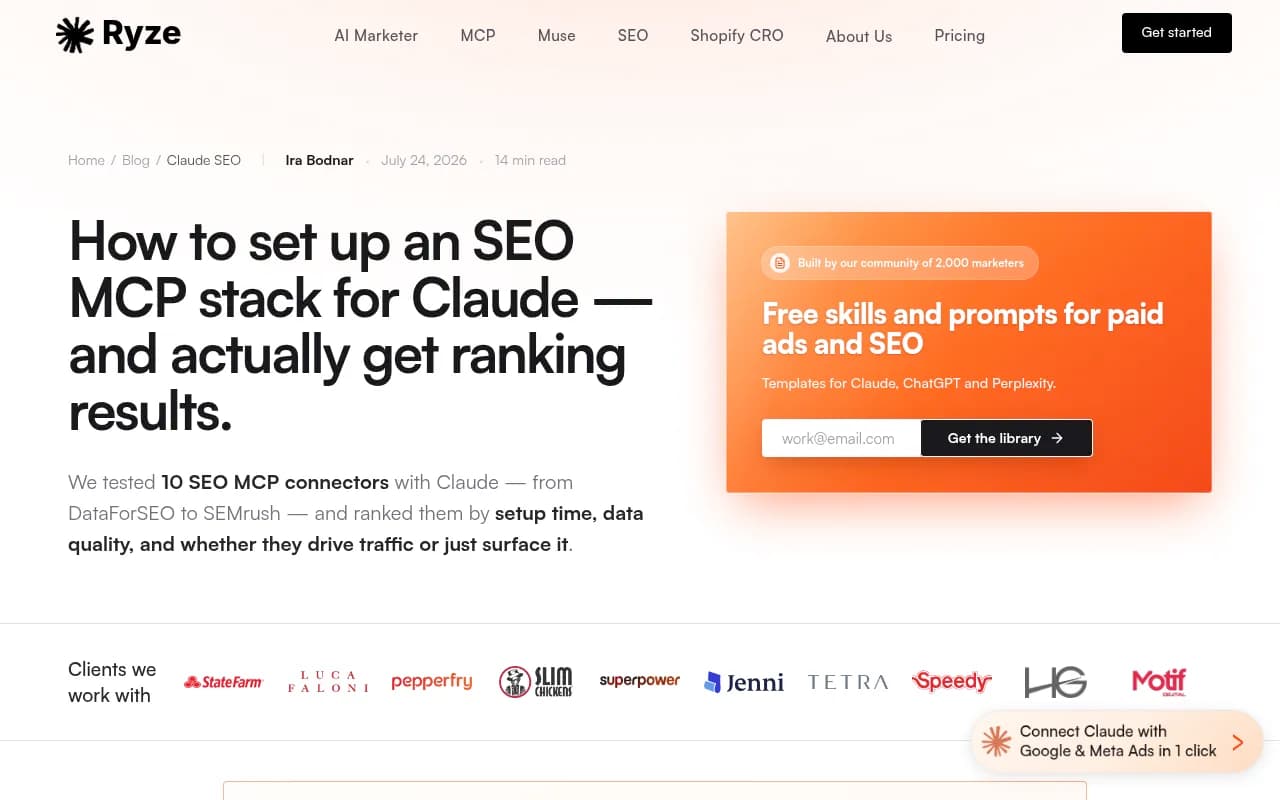
If you only do one thing, do Search Console. The data is first-party, which makes it the most trustworthy input you can give a model. There is a longer comparison of ten connectors in Ryze AI's SEO MCP stack write-up, which reports the public MCP ecosystem growing from roughly 200 servers in January 2026 to over 3,400 by July. Treat any single vendor's ranking of its own category with some salt.
Troubleshooting
The server does not appear after restart
Check that you fully quit the app. On macOS use Cmd+Q, and on Windows check the system tray. Then validate the JSON (Step 3). Then confirm Node.js or uv is on your PATH by running node --version or uv --version in a fresh terminal.
It works in Claude Desktop but not on claude.ai
Expected. Local servers run on your machine, so only the desktop app can reach them. Use a remote connector if you need the web version.
Windows is being difficult
Two tips from a popular r/ClaudeAI Windows thread: enable developer mode in Claude Desktop, and try running the app as administrator. Also double-check escaped backslashes in any path.
Search Console returns nothing
Usually a property mismatch. A domain property (sc-domain:example.com) and a URL-prefix property are different things. Also confirm the service account email was added with Full permission, or that you signed in with the Google account that owns the property.
The server connects, then immediately drops
If you are building or editing your own server, remember the MCP docs warning: for stdio servers, never write to stdout. A stray print() corrupts the JSON-RPC messages. Log to stderr instead.
Security habits worth having
The config file stores environment variables in plain text. So restrict access to it, never commit it to Git, and prefer an extension's sensitive-configuration fields or a secrets manager where available. Create API keys with the narrowest scope the vendor allows. For Search Console, read-only access is plenty unless you really want indexing requests sent.
Also keep tool approvals on. It is tempting to click "always allow" after the tenth prompt. For read-only SEO data that is fine. For anything that writes, such as publishing or submitting URLs, read each call.
Beyond classic SEO data
Search Console and keyword APIs tell you how you perform in Google. They say nothing about whether ChatGPT, Perplexity or AI Overviews mention you. If that matters to your team, a dedicated platform like Promptwatch covers AI search visibility and exposes a hosted MCP server, so the same Claude workflow can pull AI visibility data next to your Search Console numbers.
For a wider view of options in that category, the GEO software directory at bestgeosoftware.com is a reasonable place to compare.
A sensible first week
- Day one: install Node.js and uv, connect Search Console, run the five test prompts.
- Day two: save the three prompts you actually reuse as a note or Claude project instruction.
- Day three to five: add one paid data source, only if a real question needed it.
- End of week: review what Claude got wrong. Every wrong answer is a prompt you should tighten, such as specifying the property, date range and metric.
Start small. One working server beats five half-configured ones, and the config file will still be there when you are ready to add the next.